How do I get Peachjar flyers from my school?
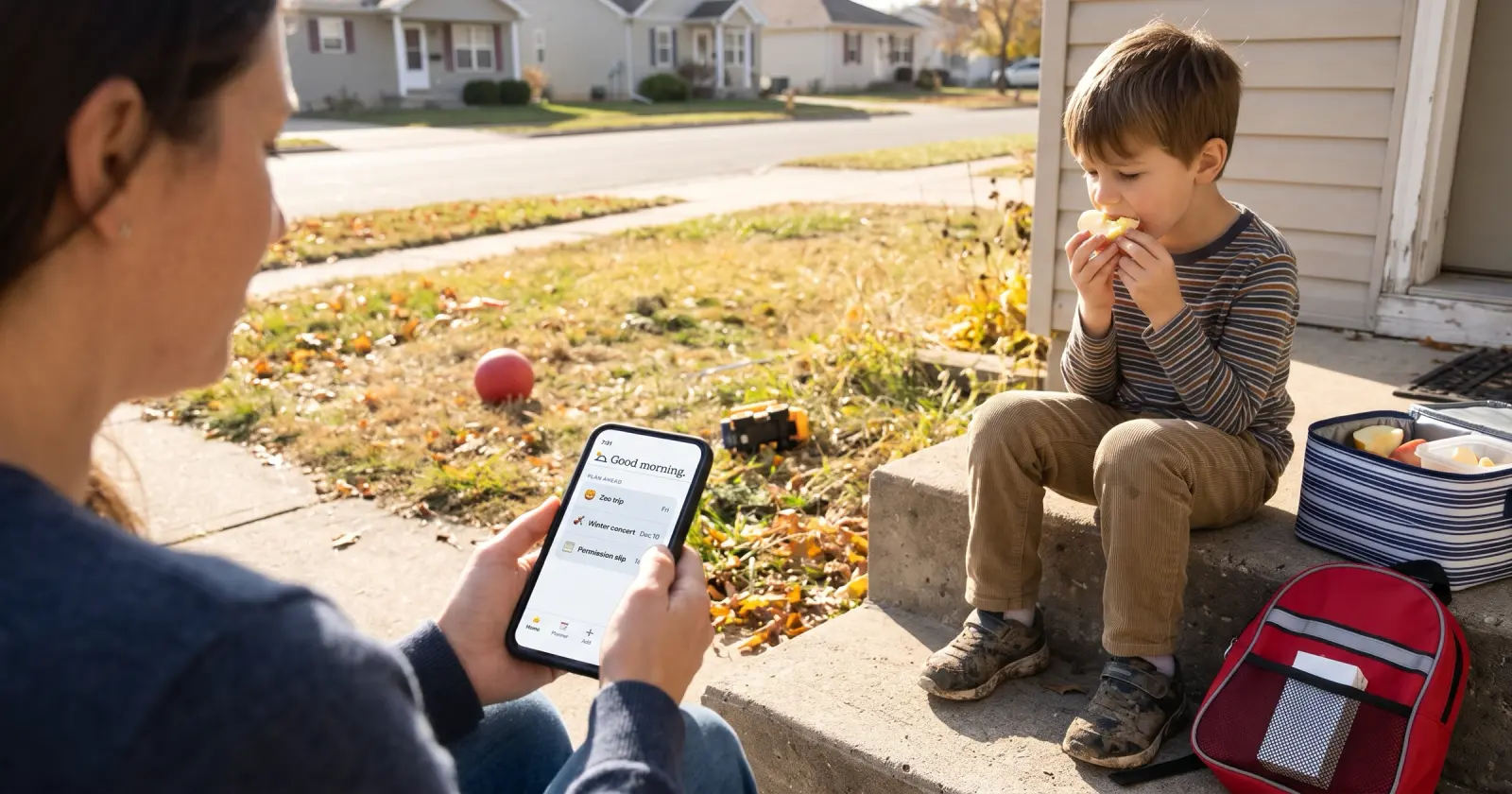
Peachjar emails the flyers your district approves; update your email and preferences in your Peachjar account, and star the flyers you want to keep.
Your school district emails Peachjar flyers to you, and you do not have to do anything to start getting them. If they have not arrived, make sure the district has your current email, then use your Peachjar account to change your address and notification preferences. Star the flyers worth keeping, because they are searchable but they do expire.
Connect Gmail, or forward school emails from any inbox to your Daywell address.
What to do
- Know how flyers reach you. District-approved flyers go straight to parents' email. The district sets the schedule, at most once a day. When a district starts using Peachjar, parents are registered automatically and get a welcome email.
- If nothing has come, look for your school. Use Peachjar's school finder to see whether your school uses it, then register through its parent sign-up page. Also check your spam folder, and ask the school office which email address it has for you.
- Update your email in your account. Hover over your name, choose Account Information, change the email and click Save. A verification email goes to the new address.
- Turn flyer emails on or off. In your preferences you can switch email notifications for new flyers from your children's schools, or from community organizations, on or off. Community flyers have their own radius, 5 to 50 miles, which does not change your school flyer emails.
- Add every child. In Account Information, choose Add Child, then enter the school and grade. Keep each child's school and grade current so the right flyers come.
- Star the ones you want. Tap the star on a flyer, then open Saved to see your list, sorted by division, grade, age or type. Search also finds expired flyers, up to 15 months back.
- Do something with a flyer the day it arrives. Decide in a minute: sign up, skip, or note the date. If it has a date, put it on your calendar then, with the child's name.
How Daywell helps
Daywell is a family prep assistant that pulls what school and activity messages ask of you into one list, with the child named when the message says. For a flyer you want to act on, share a screenshot or PDF of it from your Android phone, or use the Add option on the web, and Daywell lists the date and what it asks. Daywell does not open links to Peachjar's own site, so the screenshot or PDF is the sure way.
Questions parents ask
Do I need a Peachjar account to get flyers?
No, not to start receiving them.
No, not to start receiving them. An account is for changing your email, your preferences and your saved flyers.
How often will flyers come?
Your district decides, at most once a day.
Your district sets the schedule, with a maximum of once per day.
Can I get flyers as plain text?
Yes, on request.
Yes. Any parent or guardian can ask for flyers in a text-only format; contact Peachjar at support@peachjar.com.
Does Daywell read Peachjar flyers?
Yes, a flyer you share to it. It does not open Peachjar links.
Daywell reads a flyer you share to it, as a screenshot or PDF. It does not open links to Peachjar's website.
Can Daywell read Peachjar flyers sent to another email?
Share the flyer itself; school mail in Outlook or Gmail is read.
Daywell reads the school mail in a connected Outlook or Gmail, but not Peachjar's links, so share a flyer you want as a screenshot or PDF. A mailbox that doesn't connect can forward to your personal Daywell address.
Will Daywell go through my whole mailbox?
No. It starts with the sender and subject.
No. With read-only access it checks who sent each message and its subject line, leaves Gmail's Promotions, Social and Forums unread, and keeps to the Inbox folder in Outlook. Messages that seem to come from a school, daycare or activity get opened, and so do the ones it can't place. How long anything is kept is set out in the privacy policy.
How do I try Daywell?
At getdaywell.com.
Open getdaywell.com in your browser, then connect Gmail or Outlook with read-only access.
Sources
- Peachjar: Frequently asked questions (parents)
- Peachjar help center: account, preferences and saved flyers
- Daywell privacy policy
Checked by James Boone, Daywell, 25 Nov 2026